
Mouse Sensors Explained in Simple Terms: DPI, IPS, Polling Rate & More

What Is a Mouse Sensor?


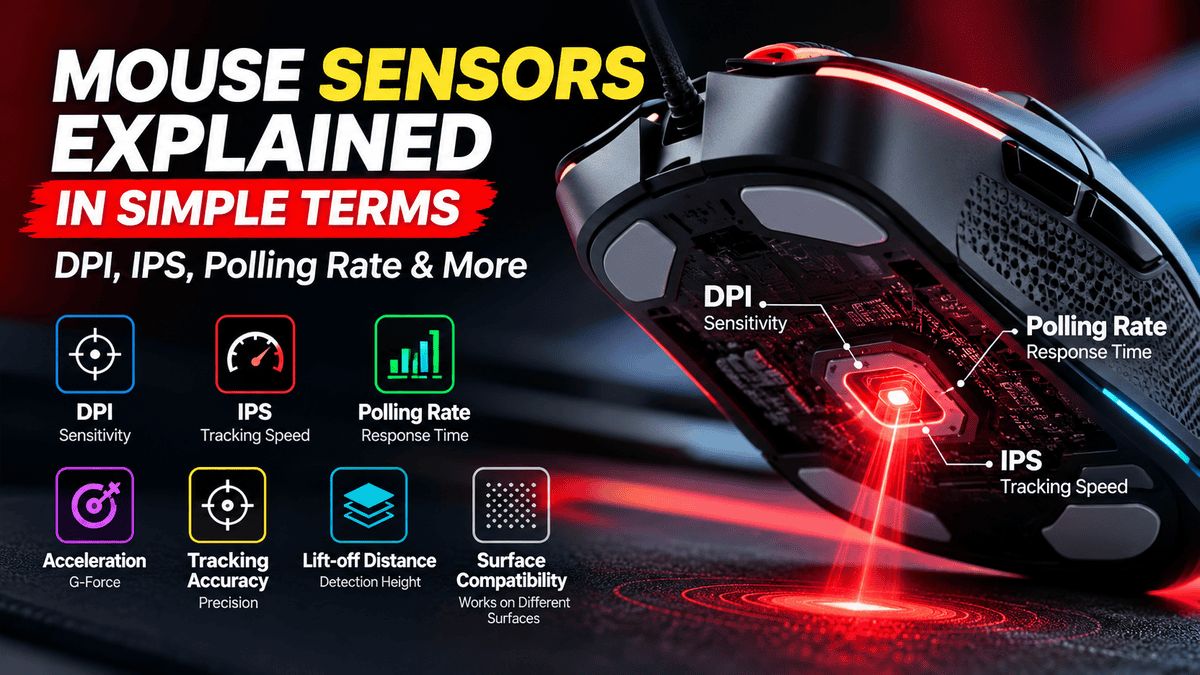
A mouse sensor is the component on the bottom of a computer mouse that tracks its movement across a surface, such as a mousepad or desk. It detects movement and sends that information to your computer, allowing the cursor to move on the screen.
Most modern gaming mice use an optical sensor. It illuminates the surface with a light source, captures a series of images, and compares those images to calculate how far and in which direction the mouse has moved.
The sensor’s quality can affect tracking accuracy, consistency, and how well the mouse performs during fast movements. This is particularly important for competitive gaming, where even small tracking problems can affect your aim.
However, a mouse sensor is only one part of the overall experience. The mouse’s shape, weight, feet, buttons, firmware, and your own sensitivity settings also influence how it feels and performs.
Why does a mouse sensor matter?
- Accurate tracking: Helps the cursor follow your physical movements consistently.
- Fast movement: Helps the mouse track rapid swipes without losing track of the surface.
- Consistent aim: Important for FPS games such as Valorant and Counter-Strike 2.
- Everyday use: Makes browsing, working, editing, and navigating your computer feel smooth and predictable.
Simple example
Imagine moving your mouse 10 cm to the right. A good sensor should track that movement consistently. If you repeat the same movement, the cursor should travel approximately the same distance, assuming your settings remain unchanged.
A sensor doesn’t automatically make you a better gamer, but reliable tracking helps you build consistent muscle memory.


Computer mice mainly use two types of optical tracking technology: LED-based optical sensors and laser sensors. Both detect surface movement and translate it into cursor movement, but they use different illumination methods and can behave differently on certain surfaces.
Understanding the difference can help you choose the right mouse for gaming, office work, or everyday use.
1. Optical Mouse Sensors
Optical mice typically use an LED light source to illuminate the surface beneath the mouse. A small imaging sensor captures surface details and compares successive images to determine the direction and distance of movement.
Most modern gaming mice use LED-based optical sensors because they can provide accurate, consistent tracking on suitable mousepads.
Advantages of optical mouse sensors:
- Reliable tracking on most cloth and gaming mousepads.
- Excellent performance in modern gaming mice.
- Many models offer high DPI, high polling rates, and fast tracking.
- Often a good choice for competitive FPS games.
- Available in budget, mid-range, and premium gaming mice.
Potential limitations:
- Performance can vary depending on the surface.
- Some sensors may struggle on transparent, highly reflective, or unsuitable surfaces.
- Performance depends on sensor design and implementation, not simply the light source.
2. Laser Mouse Sensors
Laser mice use a laser-based light source to illuminate the surface. Like optical mice, they use an imaging sensor to detect movement.
Laser sensors can detect fine surface details and may work on some surfaces where certain LED-based optical mice struggle. However, detecting more surface detail does not automatically mean better gaming performance.
Some laser mice can be more sensitive to surface texture, potentially causing unwanted tracking behavior during fast movements. The actual result depends on the specific sensor and mouse design.
Advantages of laser mouse sensors:
- Can work on a wider variety of surfaces with some designs.
- Useful for certain office and productivity setups.
- May track well on surfaces unsuitable for some LED-based optical mice.
Potential limitations:
- Some models may exhibit unwanted movement or tracking inconsistencies during rapid swipes.
- Performance varies considerably between models.
- Laser illumination alone does not guarantee greater accuracy or better gaming performance.
Optical vs. Laser Mouse Sensors: What’s the Difference?
| Feature | LED-based optical | Laser |
|---|---|---|
| Light source | LED | Laser |
| Tracking method | Captures and compares surface images | Captures and compares surface images |
| Gaming suitability | Excellent in many modern gaming mice | Depends on the specific model |
| Surface compatibility | Works well on many mousepads | Some models support a wider range of surfaces |
| Tracking behavior | Often preferred for competitive gaming | Can vary by sensor and surface |
| Best choice | Gaming and general use | Depends on the intended use and model |
Which Mouse Sensor Is Better for Gaming?
For most gamers, a good modern LED-based optical gaming mouse is the safest choice. Many competitive gaming mice use optical sensors designed for reliable tracking during fast movements.
However, don’t choose a mouse based on the word optical alone. A well-designed sensor, consistent tracking, comfortable shape, suitable weight, and reliable firmware matter more than the technology label by itself.
If you’re buying a gaming mouse in Nepal, compare the actual sensor performance, shape, weight, connectivity, warranty, and price rather than assuming that every optical mouse is better than every laser mouse.
What Is DPI, and Why Isn’t Higher DPI Always Better?
DPI stands for Dots Per Inch. In gaming mice, it describes how much the cursor moves on your screen when you move the mouse across a surface. A higher DPI setting makes the cursor move farther with the same physical mouse movement.
For example, if you move your mouse one inch, a setting of 800 DPI generally produces less cursor movement than 1600 DPI, assuming the same operating system settings and no other changes.
Most gaming mice let you adjust DPI to suit your preferences. Some models offer settings from 400 DPI to 26,000 DPI or even higher. However, a higher maximum DPI does not automatically mean a better gaming mouse.
How Does DPI Work?
DPI affects how sensitive your mouse feels. A higher setting makes the cursor move farther with less physical movement, while a lower setting requires more movement to cover the same distance on your screen.
Here is a simple comparison:
| DPI Setting | How It Feels | Common Use |
|---|---|---|
| 400 DPI | Low sensitivity | Some competitive FPS players |
| 800 DPI | Low to moderate sensitivity | Competitive gaming and FPS games |
| 1600 DPI | Moderate to high sensitivity | Gaming and everyday use |
| 3200 DPI | High sensitivity | High-resolution displays and personal preference |
| 6400+ DPI | Very high sensitivity | Specialized preferences and some high-resolution setups |
These are examples, not strict rules. Your in-game sensitivity and operating system settings also affect how quickly the cursor or crosshair moves.
What Is the Best DPI for Gaming?
There is no single DPI setting that works best for everyone. The right setting depends on your mouse movement, desk space, game, display resolution, and personal preference.
For FPS games such as Valorant and Counter-Strike 2, many players use 400 or 800 DPI with a suitable in-game sensitivity. These settings can make precise aiming easier for players who prefer broad arm movements.
For everyday computer use, web browsing, and office work, 800–1600 DPI is a reasonable starting point. You can increase it if you want the cursor to move farther with less physical movement.
The most important thing is to choose a comfortable setting and keep it consistent while you build muscle memory.
Does Higher DPI Mean a Better Gaming Mouse?
No. A mouse advertised with 26,000 DPI is not automatically better than one with 12,000 DPI.
Maximum DPI tells you how sensitive the sensor can be set, but it does not tell you everything about its performance. A good gaming sensor should also provide:
- Accurate tracking: The cursor follows your physical movement reliably.
- Consistent performance: Tracking remains predictable during normal and fast movements.
- Low latency: Mouse movement reaches the computer with minimal delay.
- High tracking speed: The sensor handles fast swipes without losing track.
- Low unwanted acceleration: Cursor movement remains consistent when you move the mouse at different speeds.
A well-designed 12,000 DPI sensor can be a better choice than a poorly implemented sensor with a much higher advertised DPI.
What Is the Difference Between DPI and Sensitivity?
DPI is the mouse’s sensor setting, while sensitivity is a broader term describing how much the cursor or in-game crosshair moves in response to your physical movement.
In FPS games, your effective sensitivity depends on both your mouse DPI and the game’s sensitivity setting. Players often use the term eDPI, meaning effective DPI, to compare sensitivity settings within the same game.
For example:
- Mouse DPI: 800
- In-game sensitivity: 0.5
- eDPI: 800 × 0.5 = 400
Another player using 1600 DPI and 0.25 in-game sensitivity would also have an eDPI of 400.
This calculation is useful for comparing settings in the same game, although it does not guarantee identical performance across different games.
How Much DPI Do You Need in a Gaming Mouse?
For most users, a gaming mouse with adjustable DPI and a reliable sensor is more important than an extremely high maximum DPI rating.
- For FPS gaming: Start with 400–800 DPI and adjust your in-game sensitivity to suit your aiming style.
- For general gaming: 800–1600 DPI is a useful starting range.
- For office work: Choose a comfortable setting that lets you navigate your screen easily.
- For high-resolution displays: Higher DPI may help you move across a large desktop with less physical mouse movement.
Look for a mouse that lets you change DPI easily and offers consistent tracking at the settings you actually use.
Key Takeaway
DPI controls mouse sensitivity, but higher DPI does not necessarily mean better sensor quality or better gaming performance. For most gamers, a reliable sensor, consistent tracking, suitable polling rate, comfortable shape, and appropriate weight matter more than the highest DPI number on the product box.
When comparing gaming mice in Nepal, don’t choose a model based on maximum DPI alone. Check the overall sensor performance, design, warranty, and price to find the right mouse for your needs.
3. What polling rate means: 125Hz, 500Hz, 1000Hz, 4000Hz and 8000Hz
Polling rate is how often a mouse reports its position and movement to a connected computer. It is measured in hertz (Hz). A higher polling rate means the mouse sends updates more frequently, which can reduce input delay and make cursor movement appear smoother.
| Polling rate | Approx. time between reports | What it means |
|---|---|---|
| 125Hz | 8ms | Basic performance; common in office mice |
| 500Hz | 2ms | Good for everyday use and casual gaming |
| 1000Hz | 1ms | A popular standard for gaming mice |
| 4000Hz | 0.25ms | More frequent updates for competitive gaming |
| 8000Hz | 0.125ms | Very frequent updates for high-performance setups |
These figures represent the interval between reports, not the mouse’s total click-to-screen latency.
Does a higher polling rate make a mouse better?
Not necessarily. Moving from 125Hz to 1000Hz can make a noticeable difference in responsiveness, particularly in fast-paced games. The improvement from 1000Hz to 4000Hz or 8000Hz is generally smaller and depends on the game, computer performance, display refresh rate and individual sensitivity.
Higher polling rates can also increase CPU usage and power consumption on wireless mice. A capable computer and a high-refresh-rate monitor help you get more benefit from them.
Practical recommendation: For most gamers, 1000Hz is an excellent starting point. Consider 4000Hz or 8000Hz if you play competitively, have a high-refresh-rate monitor and want to optimize every detail.
4. What IPS (inches per second) means
IPS stands for inches per second. It measures how fast a mouse sensor can track movement without losing accuracy.
Imagine quickly flicking your mouse across a large mousepad to aim at an opponent in Counter-Strike 2 or Valorant. If the mouse moves faster than its sensor can reliably track, the cursor or crosshair may not follow your hand accurately. This is called spin-out or tracking failure.
A mouse rated for 300 IPS can theoretically track movement speeds of up to 300 inches per second under the manufacturer’s specified conditions.
| IPS rating | General interpretation |
|---|---|
| 100–200 IPS | May be sufficient for ordinary use and moderate movement, depending on sensor quality |
| 300–400 IPS | A strong range for fast gaming movements |
| 500+ IPS | Plenty of tracking headroom for very fast flicks |
These are broad examples, not strict performance grades. IPS alone does not tell you how accurately a mouse tracks at every speed.
Does IPS matter for gaming?
- FPS gaming: Higher IPS can help prevent tracking failures during rapid flicks, particularly when using low sensitivity.
- Casual gaming: Most reputable gaming mice already offer sufficient tracking speed.
- Office work: IPS is rarely a deciding factor.
Remember that a high IPS rating does not automatically make a mouse more accurate. It indicates the maximum movement speed the sensor is designed to handle reliably. Actual performance also depends on tracking quality and how the sensor is implemented.
5. What acceleration (G) means
In mouse specifications, acceleration measured in G indicates the maximum acceleration the sensor can handle while tracking movement reliably.
One G is approximately equal to the acceleration caused by Earth’s gravity, or 9.81 metres per second squared.
For example, a mouse rated at 40G is designed to handle rapid changes in movement speed up to a specified acceleration of 40 times gravitational acceleration, under its rated conditions.
Why does this matter?
During a fast flick, you might move the mouse from rest to a high speed in a fraction of a second. The sensor must keep tracking that sudden change without losing movement data.
- Lower G rating: May offer less headroom for sudden, aggressive movements.
- Higher G rating: Allows the sensor to handle more extreme acceleration before reaching its specified limit.
Most reputable modern gaming sensors have acceleration ratings that are more than adequate for typical players.
One important distinction: this is not the same as software mouse acceleration. Software acceleration changes how far your cursor moves based on how quickly you move the mouse. A good gaming sensor should track physical movement consistently, without introducing unwanted acceleration of its own.
Buying tip: Do not choose a mouse based on its G rating alone. Sensor tracking quality, weight, shape and overall responsiveness are more useful considerations for most buyers.
6. Sensor tracking accuracy, lift-off distance and surface compatibility
A good mouse sensor should translate your physical movements into consistent cursor movements without skipping, unwanted jumps or tracking errors. Three additional characteristics can help you understand how well it works.
Sensor tracking accuracy
Tracking accuracy refers to how faithfully the sensor follows the mouse’s actual movement.
A reliable sensor should provide consistent movement across different speeds and directions. It should avoid problems such as:
- Spin-out: The sensor loses track during a fast movement.
- Jitter: The cursor shakes or moves erratically when it should be steady.
- Skipping: The cursor fails to follow part of the mouse’s movement.
- Unwanted acceleration: The cursor moves a different distance than expected because tracking is inconsistent.
A higher maximum DPI does not guarantee better tracking accuracy. A well-designed sensor should perform consistently at the DPI setting you actually use.
Lift-off distance (LOD)
Lift-off distance is the height at which the sensor stops tracking the surface when you lift the mouse.


This matters particularly to FPS players who use low sensitivity. They often lift and reposition their mouse to make large turns.
- Low LOD: The sensor stops tracking shortly after the mouse is lifted, reducing unwanted cursor movement.
- High LOD: The sensor may continue tracking as the mouse is lifted, potentially moving the crosshair unintentionally.
A low or adjustable LOD is useful for players who frequently reposition their mouse. Many gaming mice offer software settings to adjust it.
Surface compatibility
A mouse sensor needs to read the surface beneath it to track movement correctly. Different surfaces can affect performance.
- Cloth mousepads: A common, reliable choice for most optical gaming mice.
- Hard mousepads: Work with many modern sensors, though the surface finish matters.
- Glass desks: Some sensors struggle to track glass reliably.
- Glass mousepads: Compatibility depends on the sensor and the specific glass surface.
If you use a glass desk or an unusual mousepad, check real-world compatibility rather than assuming every sensor will work.
Practical recommendation: For most gamers, a good cloth mousepad and a reliable modern optical sensor are all they need. Pay attention to tracking consistency and LOD before worrying about impressive-looking specification numbers.
7. Do expensive gaming mice have better sensors?
Not always. An expensive gaming mouse may have a more advanced sensor, but price alone does not guarantee better tracking or better aim.
Modern gaming mice across different price ranges can offer excellent sensor performance. Premium models often add features beyond the sensor itself, such as lighter construction, better wireless technology, more refined switches and additional software controls.
Here are the main differences to consider:
| Feature | Budget gaming mouse | Premium gaming mouse |
|---|---|---|
| Sensor accuracy | Can be excellent | Often excellent, with more advanced features on some models |
| Maximum DPI | May be lower or higher than you need | Often offers very high DPI settings |
| Polling rate | Commonly up to 1000Hz on gaming models | May support 4000Hz or 8000Hz |
| Weight | Can be heavier | Often lighter, though not always |
| Wireless performance | Depends on implementation | May offer more refined wireless technology |
| Customization | May offer basic software controls | May offer advanced calibration and settings |
These are general tendencies, not rules. Some budget mice have impressive sensors, while some expensive mice prioritize ergonomics, extra buttons or other features.
For example, Logitech’s HERO 2 sensor and Razer’s latest Focus Pro sensor families advertise high DPI, IPS and acceleration capabilities alongside advanced tracking features. Those numbers demonstrate what premium sensors can offer, but they do not mean every player needs that level of performance.
What should you prioritize instead?
- A sensor that tracks consistently without spin-out or unwanted acceleration.
- A comfortable shape that suits your hand.
- A weight that matches your playstyle.
- Reliable wired or wireless connectivity.
- A polling rate appropriate for your gaming setup.
For most buyers, a reliable gaming mouse with a good sensor at a reasonable price is better value than paying extra for specifications they will rarely use.
8. Which mouse sensor specifications matter for FPS gaming versus everyday use?
Different users need different levels of performance. The best mouse for competitive FPS gaming is not necessarily the best choice for office work, browsing or casual gaming.
| Specification | Competitive FPS gaming | Everyday use |
|---|---|---|
| DPI | Adjustable settings and consistent tracking | Comfortable cursor speed |
| Polling rate | 1000Hz is a strong baseline; higher rates are optional | 125Hz is usually sufficient |
| IPS | Important for fast flicks, especially at low sensitivity | Rarely important |
| Acceleration (G) | A reliable sensor with sufficient headroom | Rarely a deciding factor |
| Tracking accuracy | Very important | Important for smooth, reliable use |
| Lift-off distance | Low or adjustable LOD can help | Usually less important |
| Surface compatibility | Reliable tracking on your mousepad | Important if using glass or unusual surfaces |
| Weight and shape | Important for control and comfort | Important for comfort during long sessions |
For FPS games like Valorant and Counter-Strike 2
Prioritize consistent sensor tracking, a comfortable and preferably lightweight design, suitable DPI settings and a reliable 1000Hz or faster polling rate.
If you use low sensitivity and make large movements, IPS and lift-off distance deserve more attention. If you have a high-refresh-rate monitor and a powerful PC, a mouse with 4000Hz or 8000Hz polling may offer additional responsiveness, although the improvement over 1000Hz is usually smaller.
For casual gaming and everyday use
You generally do not need extreme sensor specifications. A comfortable mouse with reliable tracking and a suitable DPI setting will work well for browsing, office tasks, studying and most games.
The bottom line: Choose a mouse for how you actually use it, not for the biggest numbers printed on its box.
9. How to choose a gaming mouse in Nepal
When buying a gaming mouse in Nepal, compare the features that affect your experience, your budget and the quality of after-sales support. A high-end mouse is not automatically the best purchase for every gamer.


Step 1: Set a realistic budget
Start with how much you are comfortable spending in NPR. You can find gaming mice across entry-level, mid-range and premium categories, but exact prices vary by brand, model, availability and seller.
Rather than buying the most expensive model you can afford, identify the features you actually need.
Step 2: Choose a mouse that fits your hand
Shape and comfort can matter more than small differences in sensor specifications.
- Palm grip: Your palm rests largely on the mouse. An ergonomic shape may feel comfortable.
- Claw grip: Your palm and fingertips control the mouse. Look for a shape that supports your preferred grip.
- Fingertip grip: You control the mouse mainly with your fingertips. A compact or lightweight design may suit you.
Consider hand size, mouse length, width, hump height and overall weight before buying.
Step 3: Check the sensor and polling rate
For a gaming mouse, look for reliable tracking, adjustable DPI and a polling rate of at least 1000Hz if competitive gaming is your priority.
You do not need 30,000 DPI or 8000Hz polling to enjoy accurate gaming. Those features are optional upgrades, not essential requirements.
Step 4: Decide between wired and wireless
- Wired: Usually a practical choice for buyers who want simple setup without charging.
- Wireless 2.4GHz: A good option for gaming when the mouse has a reliable gaming-grade wireless connection.
- Bluetooth: Convenient for laptops, office work and multi-device use, but it generally has a lower polling rate and is less suitable when minimizing gaming latency is the priority.
For wireless models, check battery life, charging options and whether the advertised high polling rate requires a separate receiver or dongle.
Step 5: Check warranty and seller reliability
Before purchasing in Nepal, verify:
- Whether the product is genuine and supplied with a clear warranty policy.
- Whether the exact model and variant are available.
- Whether the warranty is handled locally or through another channel.
- Whether replacement parts, support, or software are available if needed.
- The final price, including delivery charges.
A lower price is not always better if warranty coverage and after-sales support are unclear.
Step 6: Match the mouse to your gaming style
For competitive FPS players
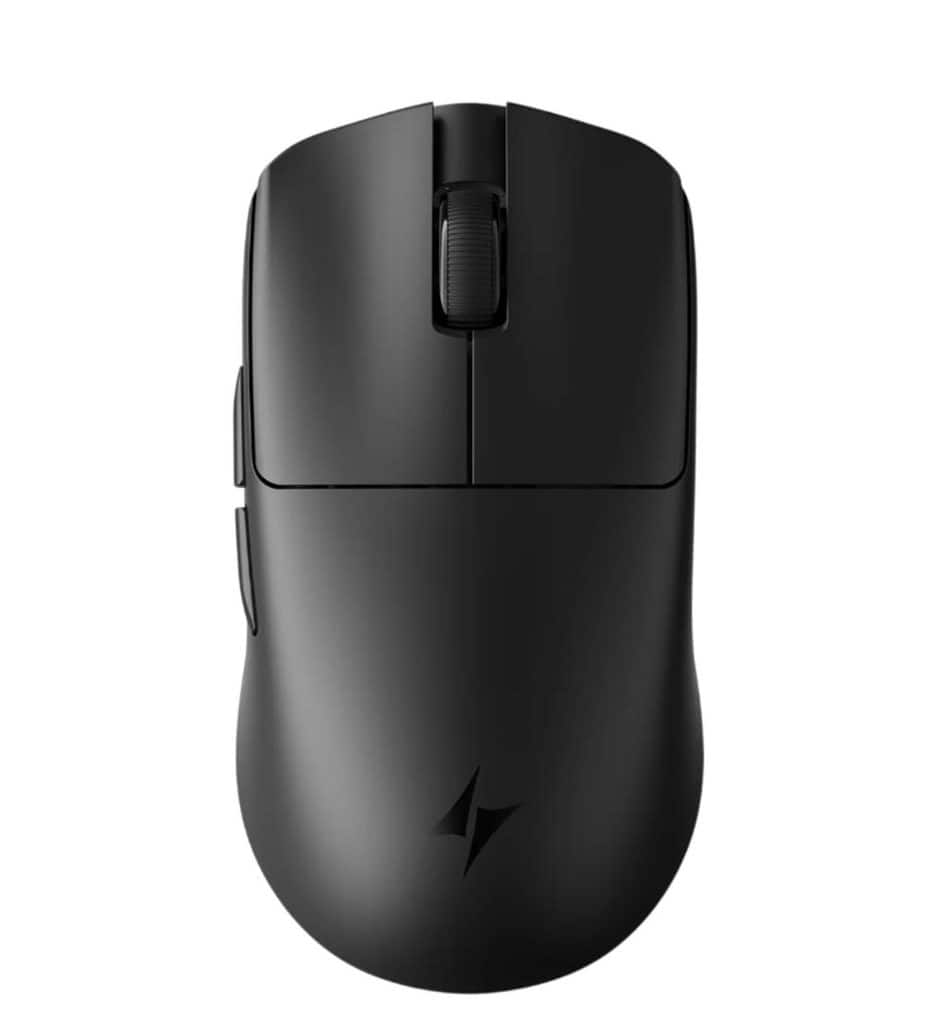
Prioritize a reliable sensor, comfortable shape, low weight if preferred, 1000Hz or faster polling, and low lift-off distance if you frequently reposition the mouse.
For MMO and MOBA players
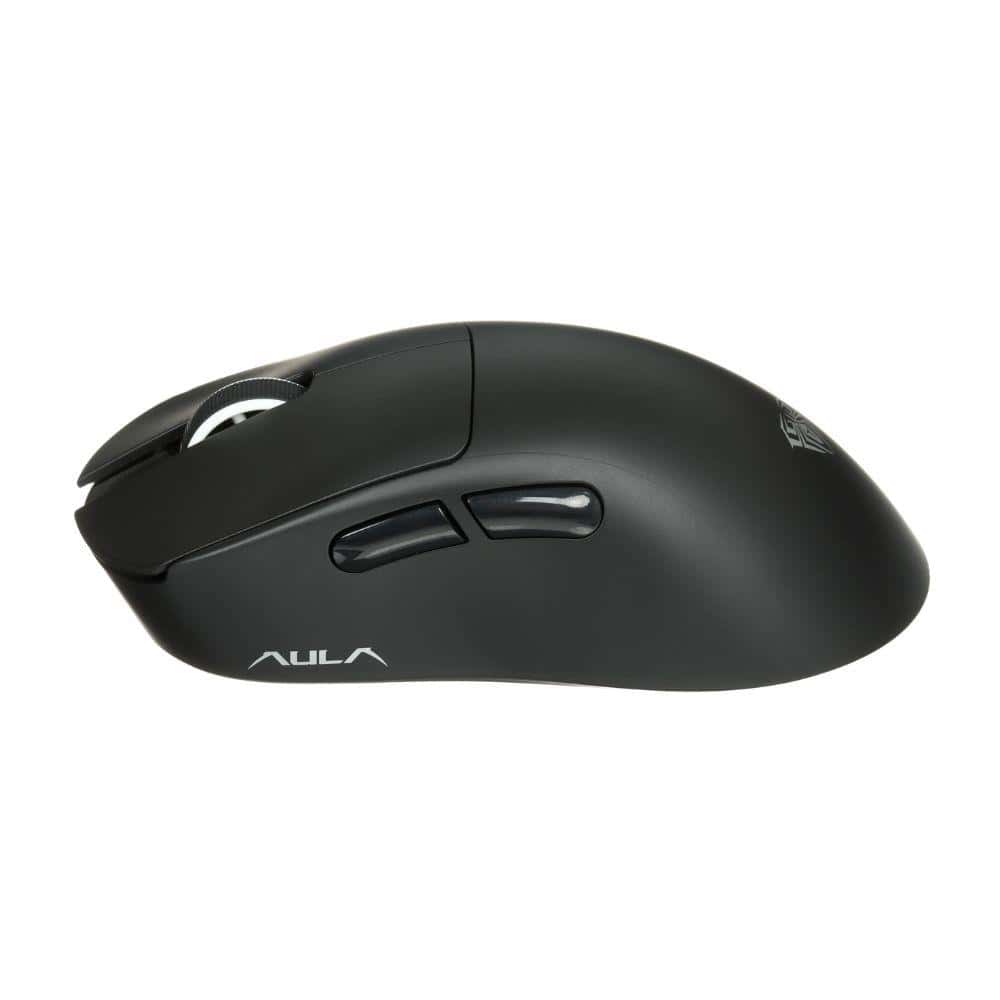
Consider programmable side buttons, comfortable ergonomics, and software that lets you customize controls. A very high polling rate may be less important than these features.
For office work and casual gaming
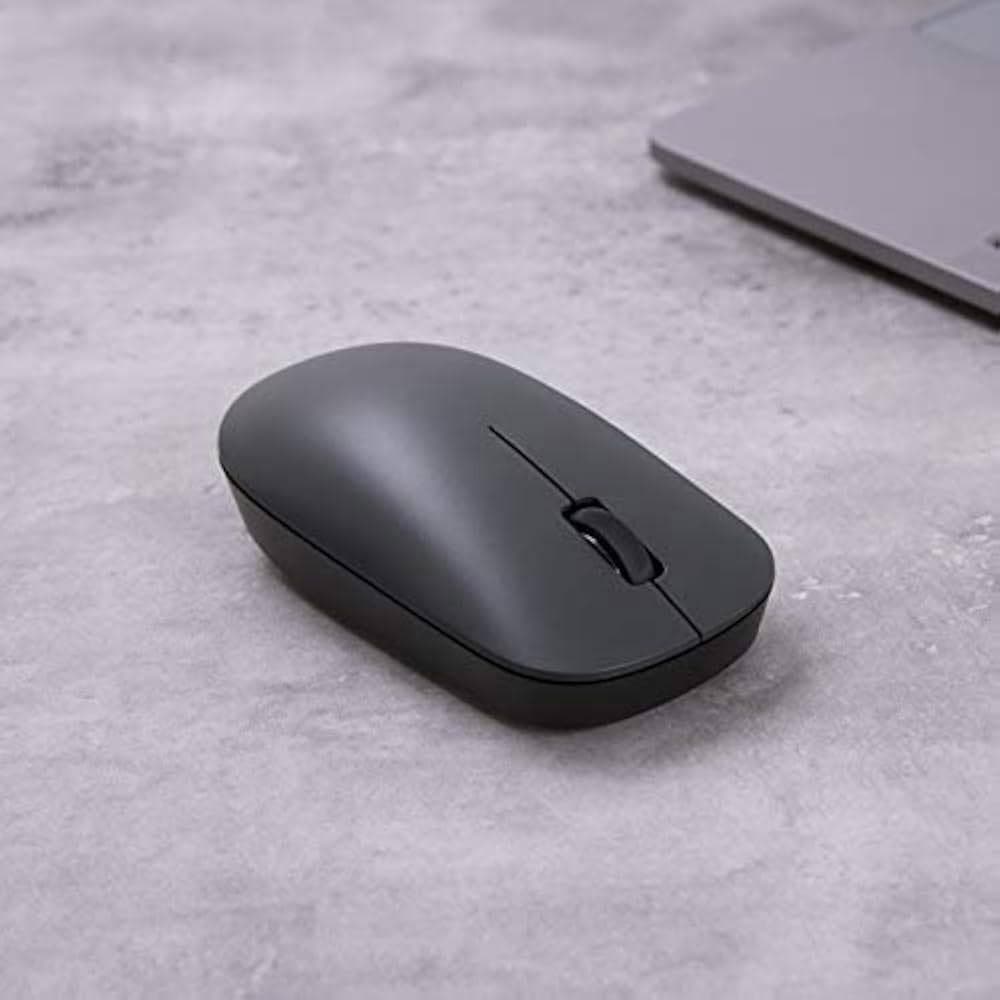
Prioritize comfort, dependable tracking, battery life if wireless, and a sensible price. You can safely ignore many extreme sensor specifications.
Final recommendation
For most people buying a gaming mouse in Nepal, a reputable model with a reliable optical sensor, adjustable DPI, 1000Hz polling, comfortable ergonomics, and clear warranty coverage is a sensible starting point.
Spend more when you have a specific reason, such as needing a lighter mouse, better wireless performance, additional buttons, or higher polling rates for a competitive setup.